Why... Why... Why?
This blog is dedicated to documenting error resolution and other tidbits that I discover while working as a Consultant in the Oracle EPM (Hyperion) field. As much of my job revolves around issue resolution, I see an opportunity to supplement the typical troubleshooting avenues such as the Oracle Knowledgebase and Oracle Forums with more pinpointed information about specific errors as they are encountered. Beware, the information found in this blog is for informational purposes only and comes without any warranty or guarantee of accuracy.

EPMVirt: Create your own Oracle Hyperion Virtual Environment:

Showing posts with label Reporting/Workspace. Show all posts

Wednesday, October 23, 2013

RA Through Firewall

Another quick tip for implenting RA through a firewall.

The RA service by default uses a dynamic RMI port. To pin this port down for allowing through a firewall you can find the following documented:

http://docs.oracle.com/cd/E17236_01/epm.1112/epm_install_start_here_11121/frameset.htm?ch07s06s02.html

Remote ADM ServerDynamicEPM_ORACLE_HOME/common/ADM/11.1.2.0/lib/ADM.properties

Uncomment ADM_RMI_SERVER_PORT and specify value for the port opened in firewall.

Workspace (RA) Hangs when Implementing Firewall


Recently, I was implementing RA through a firewall. I discovered that Workspace would hang during login.

Looking through the logs I noticed some stuck threads in the RAFrameworkWeb logs,
which is more than the configured time (StuckThreadMaxTime) of "600" seconds. Stack trace:Thread-204 "[STUCK] ExecuteThread: '12' for queue: 'weblogic.kernel.Default (self-tuning)'" <alive, in native, suspended, priority=1, DAEMON> {    java.net.PlainSocketImpl.socketConnect(PlainSocketImpl.java:???)....java.lang.Class@10a184ba[thin lock]    com.sqribe.WS.WebSQRIBE.loginToRepository(Unknown Source)
This means something is unable to connect during RA initialization. 

Checking the Windows firewall for dropped packets (after configuring logging of dropped packets)

2013-10-10 23:15:43 DROP TCP xx.xx.xx.xx xx.xx.xx.xx 5613 32631 48 S 3865585991 0 8192 - - - RECEIVE


Apparently, some higher level ports are being blocked... What is process is being blocked?
I looked further at the netstat output to see what ports were LISTENING on the node, 

Netstat -a -n -o 
  TCP    0.0.0.0:6801           0.0.0.0:0              LISTENING       9256
  TCP    0.0.0.0:6802           0.0.0.0:0              LISTENING       9256
  TCP    0.0.0.0:6803           0.0.0.0:0              LISTENING       9256
  TCP    0.0.0.0:6804           0.0.0.0:0              LISTENING       9256
  TCP    0.0.0.0:6805           0.0.0.0:0              LISTENING       9256
  TCP    xx.xx.xx.xx:30298   0.0.0.0:0              LISTENING       9256
  TCP    xx.xx.xx.xx:30332   0.0.0.0:0              LISTENING       9256
  TCP    xx.xx.xx.xx:30365   0.0.0.0:0              LISTENING       9256
  TCP    xx.xx.xx.xx:30400   0.0.0.0:0              LISTENING       9256
  TCP    xx.xx.xx.xx:30437   0.0.0.0:0              LISTENING       9256
  TCP    xx.xx.xx.xx:30472   0.0.0.0:0              LISTENING       9256
  TCP    xx.xx.xx.xx:30507   0.0.0.0:0              LISTENING       9256
  TCP    xx.xx.xx.xx:30540   0.0.0.0:0              LISTENING       9256
  TCP    xx.xx.xx.xx:30575   0.0.0.0:0              LISTENING       9256
  TCP    xx.xx.xx.xx:30611   0.0.0.0:0              LISTENING       9256

  TCP    xx.xx.xx.xx:30646   0.0.0.0:0              LISTENING       9256

There are a ton of 30k+ ports that that RA is listening on. Obviously, these are not being allowed through the firewall. The 9256 column is the PID, but also the common 6800 , 6801 ports identify this as the RA Framework Services. What is causing these higher number ports? 

Finally, after some digging in the KB,
How to Change BI+ EPM Workspace to No Longer Use Dynamic Port Allocation for Logins to Properly Configure the Firewall to Allow Connections. (Doc ID 1483777.1)

Hyperion BI+ - Version 11.1.2.0.00 to 11.1.2.2.000 [Release 11.1]

How to change BI+ EPM Workspace to no longer use dynamic port allocation for logins so you can properly configure the firewall to allow connections.

FIX

 1. Login to Workspace click  Navigate -> Administer -> R&A -> Web Applications
      Right click on Reporting and Analysis Framework Web-Application -> Select Properties -> Internal
        Change Pass Data Using Streams Instead Of Files to No -> click OK

 2. Restart RaFramework Web


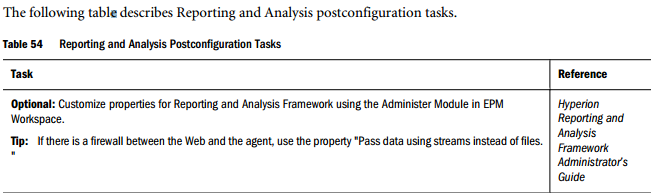
Also, there is a small blurb in the EPM doc about this if you look carefully,

Friday, November 23, 2012

Financial Reporting Studio Patching in 11.1.2.2


The client tools have been repackaged in 11.1.2.2. Instead of requiring a special bloated installer, they come packaged as a streamlined .msi installer package. This greatly simplifies the distribution and patching process. However, keep an eye out for updated client installers when patching.

For example, The newest version of the financial reporting client comes inside in the patches.
Patch 13997553: Patch Set Update: 11.1.2.2.300 for Oracle Hyperion Reporting and Analysis for Financial Reporting

The studio installer is in this directory: 13997553/files/install/bin/financialreportingstudio.exe 

It is required to uninstall the old version and re-install the new version on all client machines.


Sunday, January 1, 2012

Configuring the Financial Reporting Print Server in 11.1.2.1

The Print Service comes with the FR Client installation package on edelivery.oracle.com.

It is not installed automatically... Follow these instructions:

Configuring Financial Reporting Print Server


Financial Reporting Print Server is used to generate PDF reports. Before you configure Print
Server, ensure the following:
• At least one Planning server is configured and running
• Financial Reporting Studio is installed on a client host machine (CLIENTHOST1)
To configure Print Server:
1. Using the deployment account, log into the EPM System Clients host
(CLIENTHOST1).
2. Using a text editor, open C:\Program Files
(x86)\Oracle\FinancialReportingStudio\products\financialreporting\install\bin\FRSetupPrintServer.properties.
3. Enter the following information:
FRWebServer=http://epminternal.mycompany.com:19000
AdminUser=admin
AdminPassword=EPM Administrator’s password
4. Save and close FRSetupPrintServer.properties.
5. Run FRSetupPrintServer utility.
The print server should be ready to use after you run the FRSetupPrintServer utility.

There is a log file generated by this utility and you should check it to be sure it ran correctly. Also, in control panel-> printers on the Financial Reporting node you should see some virtual printers named FRPrint(1,2,3...). If there are no printers listed - the script is failing... Also check the windows services to ensure the FR print service is listed.